Your television is already smart enough to stream thousands of live channels without buying any additional hardware. Setting up IPTV Smart TV streaming delivers the cleanest viewing experience because everything runs natively on the device connected to your best screen. You might also be interested in our guide on How to Set Up IPTV: Complete Step-by-Step Guide for Beginners.
You might also be interested in our guide on IPTV Firestick: Complete Setup Guide for Amazon Fire TV in 2025.
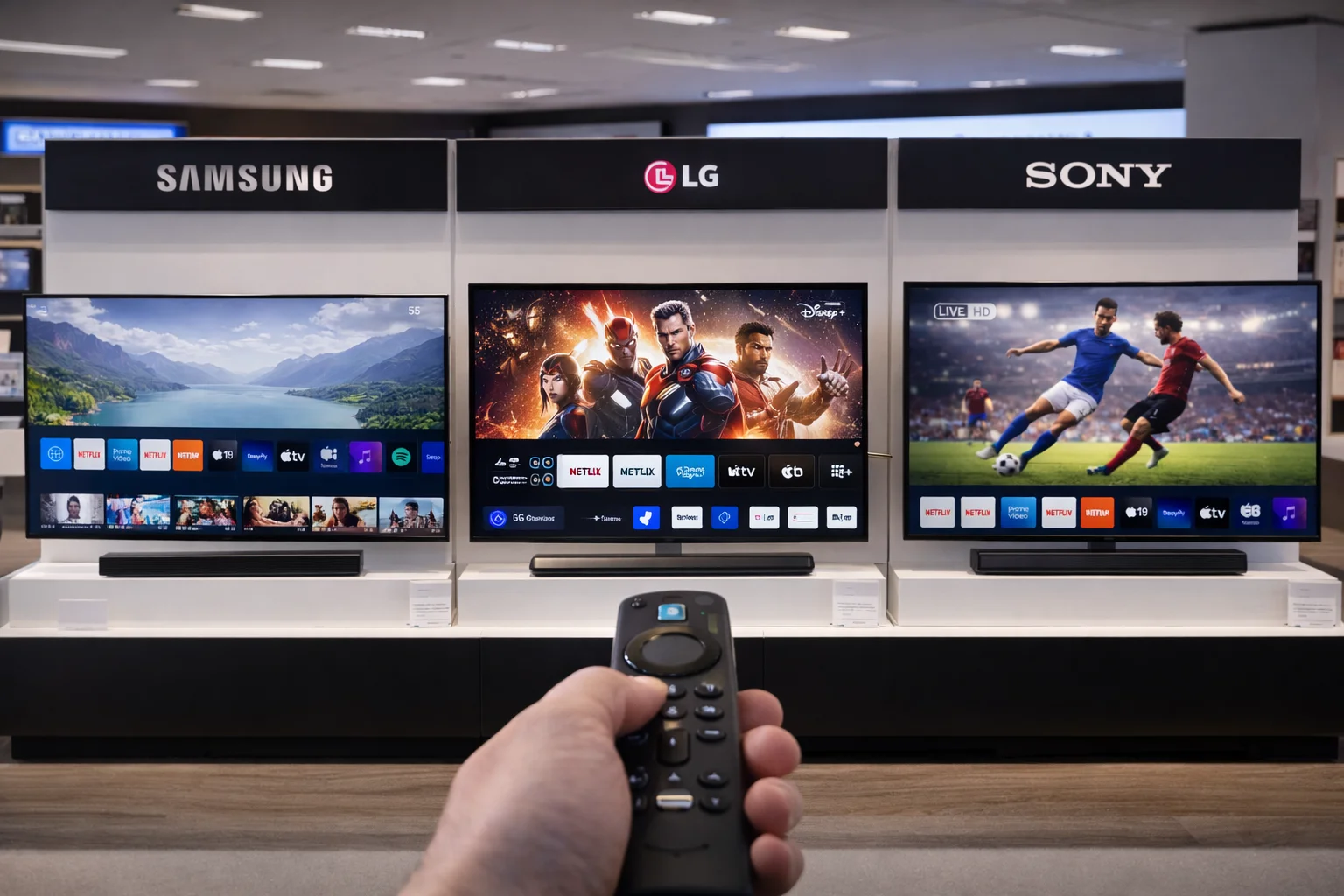
This guide covers setup instructions for every major Smart TV brand: Samsung, LG, Sony, Philips, TCL, Hisense, and any Android TV model. No external devices needed.
If you prefer using a dedicated streaming stick instead, check our Firestick guide. You might also be interested in our guide on IPTV Box UK: 7 Best Devices for Streaming in 2025.
Quick Summary: Key Takeaways
- Android TVs (Sony, Philips, TCL) offer the easiest IPTV setup via Google Play Store.
- Samsung Tizen and LG webOS require the Smart IPTV app or alternative methods.
- All Smart TVs support IPTV through apps, casting, or external devices.
- An internet connection of at least 25 Mbps is required for HD streaming.
- A wired Ethernet connection outperforms Wi-Fi on every Smart TV.
- Check your TV’s app store first before attempting sideloading.
Table of Contents
- Which Smart TVs Support IPTV?
- Setup on Android TVs
- Setup on Samsung Tizen TVs
- Setup on LG webOS TVs
- Setup on Sony TVs
- Alternative Methods for Any Smart TV
- Optimising Your Smart TV for IPTV
- Troubleshooting
- Frequently Asked Questions
- Conclusion
Which Smart TVs Support IPTV?
Every Smart TV manufactured after 2016 can run IPTV Smart TV applications in some form. However, the ease of setup varies dramatically between operating systems:
| TV Brand | Operating System | IPTV Support | Ease of Setup |
|---|---|---|---|
| Sony | Android TV / Google TV | Excellent | Very Easy |
| Philips | Android TV | Excellent | Very Easy |
| TCL | Android TV / Google TV | Excellent | Very Easy |
| Hisense | VIDAA / Android TV | Good – Excellent | Easy |
| Samsung | Tizen | Good | Moderate |
| LG | webOS | Good | Moderate |
Android TV models have the best IPTV support because you can install TiviMate and IPTV Smarters Pro directly from the Google Play Store. Samsung and LG TVs require slightly more steps but work perfectly well once configured.
Setup on Android TVs (Sony, Philips, TCL, Hisense)
Android TVs offer the simplest IPTV Smart TV experience:
Step 1: Open Google Play Store
Press the Home button on your remote and navigate to the Google Play Store (or Apps section). Sign in with your Google account if you have not already.
Step 2: Install a Player App
Search for one of these recommended apps:
- TiviMate — Best overall IPTV player with advanced EPG
- IPTV Smarters Pro — Simplest interface for beginners
- XCIPTV Player — Clean alternative with good performance
Install your preferred app.
Step 3: Enter Your Credentials
Open the app and select “Add New User” or “Add Playlist.” Choose “Xtream Codes API” and enter your username, password, and server URL from your IPTV provider.
Step 4: Start Watching
The app downloads your channel list and EPG data. Browse categories, add favourites, and start streaming.
The entire process takes under 5 minutes.
Setup on Samsung Tizen TVs
Samsung TVs run the proprietary Tizen operating system, which does not have access to the Google Play Store. Here is how to get IPTV Smart TV working on Samsung:
Method 1: Smart IPTV App (SIPTV)
Smart IPTV is the most popular dedicated IPTV app for Samsung TVs:
- Open the Samsung App Store on your TV
- Search for “Smart IPTV” and install it
- Open the app and note the MAC address displayed on screen
- On your phone or computer, visit siptv.app
- Enter your TV’s MAC address and your M3U playlist URL
- Click “Send”
- Restart the Smart IPTV app on your Samsung TV
- Your channel list loads automatically
Note: Smart IPTV charges a one-time activation fee of approximately £5 after a 7-day free trial. This is per-device and permanent.
Method 2: Samsung Internet Browser
For a no-install option:
- Open the Samsung Internet Browser (pre-installed on most models)
- Navigate to a web-based IPTV player provided by your subscription service
- Enter your credentials and start streaming directly in the browser
This method works but offers a less polished experience than a dedicated app.
Method 3: Screen Mirroring
If app installation is problematic:
- Install an IPTV app on your Android phone
- Open Samsung Smart View or SmartThings on your phone
- Cast your phone screen to your Samsung TV
- Control the IPTV app from your phone while watching on the big screen
Setup on LG webOS TVs
LG TVs use the webOS operating system. Setup follows a similar pattern to Samsung:
Method 1: Smart IPTV App
- Open the LG Content Store
- Search for “Smart IPTV” and install it
- Note the MAC address displayed on screen
- Visit siptv.app on your phone or computer
- Enter the MAC address and your M3U URL
- Click “Send” and restart the app on your LG TV
Method 2: SS IPTV
An alternative app available on LG webOS:
- Open the LG Content Store and install “SS IPTV”
- Open the app and navigate to Settings
- Select “Add External Playlist”
- Enter your M3U URL and save
- The channel list loads on the main screen
Method 3: LG Screen Share
Cast from your phone using LG’s Screen Share feature built into webOS. This mirrors your phone’s IPTV app directly to the television.
Setup on Sony TVs
Most modern Sony TVs run Android TV or Google TV, making setup identical to the Android TV section above. Install TiviMate or Smarters Pro from the Play Store and enter your credentials.
For older Sony TVs running the proprietary Opera system, use the screen mirroring method or connect an Amazon Firestick to the HDMI port.
Alternative Methods for Any Smart TV
If your TV’s operating system makes native app installation difficult, these universal methods work on any IPTV Smart TV:
HDMI Streaming Device
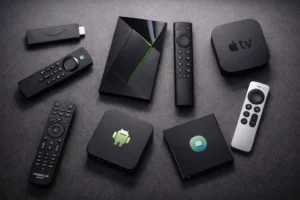
Connect an Amazon Firestick, Android TV box, or Apple TV to your TV’s HDMI port. Install IPTV apps on the external device and use it as your primary streaming source. This is often the most reliable approach for older or incompatible Smart TVs.
Chromecast / Google Cast
- Install an IPTV app that supports Chromecast on your phone
- Open the app and start playing a channel
- Tap the Cast icon and select your TV
- The stream transfers to your television while you control playback from your phone
DLNA Streaming
Some IPTV apps support DLNA, which allows direct streaming to any DLNA-compatible TV on your local network without additional hardware.
Optimising Your Smart TV for IPTV
Wired Ethernet Connection
Every modern Smart TV has an Ethernet port on the back panel. Use it.
Wired connections are faster, more stable, and eliminate Wi-Fi interference. A simple 5-metre Ethernet cable from Amazon costs under £5 and dramatically improves your IPTV Smart TV experience.
TV Picture Settings
Adjust your TV’s picture settings for the best IPTV quality:
- Disable motion smoothing (called MotionFlow on Sony, TruMotion on LG, Auto Motion Plus on Samsung). This feature creates an artificial “soap opera effect” on live broadcasts.
- Set picture mode to “Cinema” or “Movie” for the most accurate colours.
- Disable energy saving mode as it dims the screen and reduces processing power.
App and Firmware Updates
Keep your TV’s firmware and IPTV apps updated.
Manufacturers regularly release updates that improve app compatibility, fix bugs, and enhance network performance. Enable automatic updates in your TV settings.
Storage Management
Smart TVs have limited internal storage. If performance degrades, clear app caches and uninstall apps you do not use. Navigate to Settings > Apps > [App Name] > Clear Cache on most platforms.
Troubleshooting
### App Not Available in TV Store
- Try searching for alternative names (e.g., “SIPTV” instead of “Smart IPTV”)
- Use an external streaming device connected via HDMI
- Use the screen mirroring method from your phone
### Channels Not Loading
- Verify your M3U URL or Xtream Codes credentials are correct
- Test your internet connection speed from the TV’s network settings
- Restart the TV and reopen the app
- Try switching from Wi-Fi to Ethernet
### Poor Picture Quality
- Check that you are watching HD versions of channels (often listed separately)
- Increase your internet speed if below 25 Mbps
- Disable any picture processing features that might interfere
- Ensure your TV supports the resolution being streamed
### Audio Issues
- Check TV audio output settings (switch between PCM and Dolby)
- Restart the channel
- Try a different player app
- Update the IPTV app to the latest version
Frequently Asked Questions: Iptv smart tv
### Can I watch IPTV directly on my Smart TV?
Yes. Modern Smart TVs from Samsung, LG, Sony, Philips, TCL, and Hisense all support IPTV apps.
Android TVs offer the easiest setup through the Google Play Store. Samsung and LG TVs use dedicated apps like Smart IPTV.
### Which Smart TV is best for IPTV?
Any TV running Android TV or Google TV offers the best IPTV support. Sony Bravia, Philips, and TCL models are excellent choices. They give direct access to TiviMate and IPTV Smarters Pro through the Google Play Store.
### Do I need to buy a Firestick if I have a Smart TV?
Not necessarily.
If your Smart TV runs Android, you can install IPTV apps directly. For Samsung and LG TVs, native apps like Smart IPTV work well. However, a Firestick offers faster performance and more app options if your TV’s built-in apps feel limited.
### Is IPTV on Smart TV as good as on a Firestick?
On Android TVs, the experience is identical because you use the same apps. On Samsung and LG TVs, the experience is slightly more limited due to fewer app options, but still perfectly functional for daily viewing.
For more information on internet streaming technology, visit the Ofcom Connected Nations Report.
Conclusion: Your TV Is Already Ready: Iptv smart tv
Setting up IPTV Smart TV streaming is simpler than most people expect. If you own an Android TV, you are literally 5 minutes away from thousands of live channels. Samsung and LG owners need a few extra steps but end up with equally excellent results.
Start with a free trial to test the service, install the appropriate app for your TV brand, and enjoy premium entertainment without any additional hardware costs.