Setting up a streaming service for the first time can feel intimidating. The good news is that learning how to set up IPTV is genuinely simple once you understand the basic steps. Most people have their service running within 10 minutes. You might also be interested in our guide on IPTV Firestick: Complete Setup Guide for Amazon Fire TV in 2025.
You might also be interested in our guide on IPTV Smart TV: How to Stream on Samsung, LG, Sony and More.
This guide walks you through the entire process on every popular device: Amazon Firestick, Android TV boxes, Smart TVs, smartphones, and computers.
Whether you are a complete beginner or switching from another provider, these step-by-step instructions will get you streaming. New to the technology? Start with our what is IPTV beginner guide. You might also be interested in our guide on IPTV Box UK: 7 Best Devices for Streaming in 2025.
Quick Summary: What You Need
- An active IPTV subscription or free trial credentials
- A compatible device (Firestick, Smart TV, Android box, phone, or PC)
- A stable internet connection of at least 25 Mbps
- A player app (IPTV Smarters Pro or TiviMate recommended)
- Your login details: username, password, and portal URL or M3U link
- Optional: a VPN for privacy and anti-throttling
Table of Contents
- Understanding Your Login Credentials
- Setting Up on Amazon Firestick
- Setting Up on Android TV Boxes
- Setting Up on Smart TVs
- Setting Up on Android Phones and Tablets
- Setting Up on iPhone and iPad
- Setting Up on Windows PC
- Configuring Your EPG
- Optimising Your Setup
- Troubleshooting Common Issues
- Frequently Asked Questions
- Conclusion
Understanding Your Login Credentials
Before you learn how to set up IPTV on any device, you need to understand the three login formats providers use:
Xtream Codes API (Most Common)
Your provider sends you three pieces of information:
- Username: A unique login name (e.g., user12345)
- Password: Your account password
- Server URL: The portal address (e.g., http://provider.com:8080)
These three fields are entered directly into player apps like IPTV Smarters Pro or TiviMate. This is the easiest and most common setup method.
M3U URL
Some providers give you a single long URL that ends in .m3u or .m3u8. This URL contains your entire channel list and is pasted into a player app as a “playlist” source.
Example format: http://provider.com:8080/get.php?username=user&password=pass&type=m3u_plus
MAC Address Portal
Certain devices like Formuler boxes use a MAC-based portal. Your provider registers your device’s unique MAC address on their server, and you enter the portal URL into the device’s settings. This method is specific to devices with dedicated IPTV middleware.
Setting Up on Amazon Firestick
The Amazon Firestick is the most popular IPTV device in the UK. Here is how to set up IPTV on your Firestick:
Step 1: Enable Unknown Sources
From the Firestick home screen, navigate to Settings > My Fire TV > Developer Options. Toggle “Install Unknown Apps” or “Apps from Unknown Sources” to ON.
This allows you to install apps not available in the Amazon App Store.
Step 2: Install a Downloader App
Go to the Amazon App Store and search for “Downloader” by AFTVnews. Install and open it. This app lets you download IPTV player apps directly from the internet.
Step 3: Download Your Player App
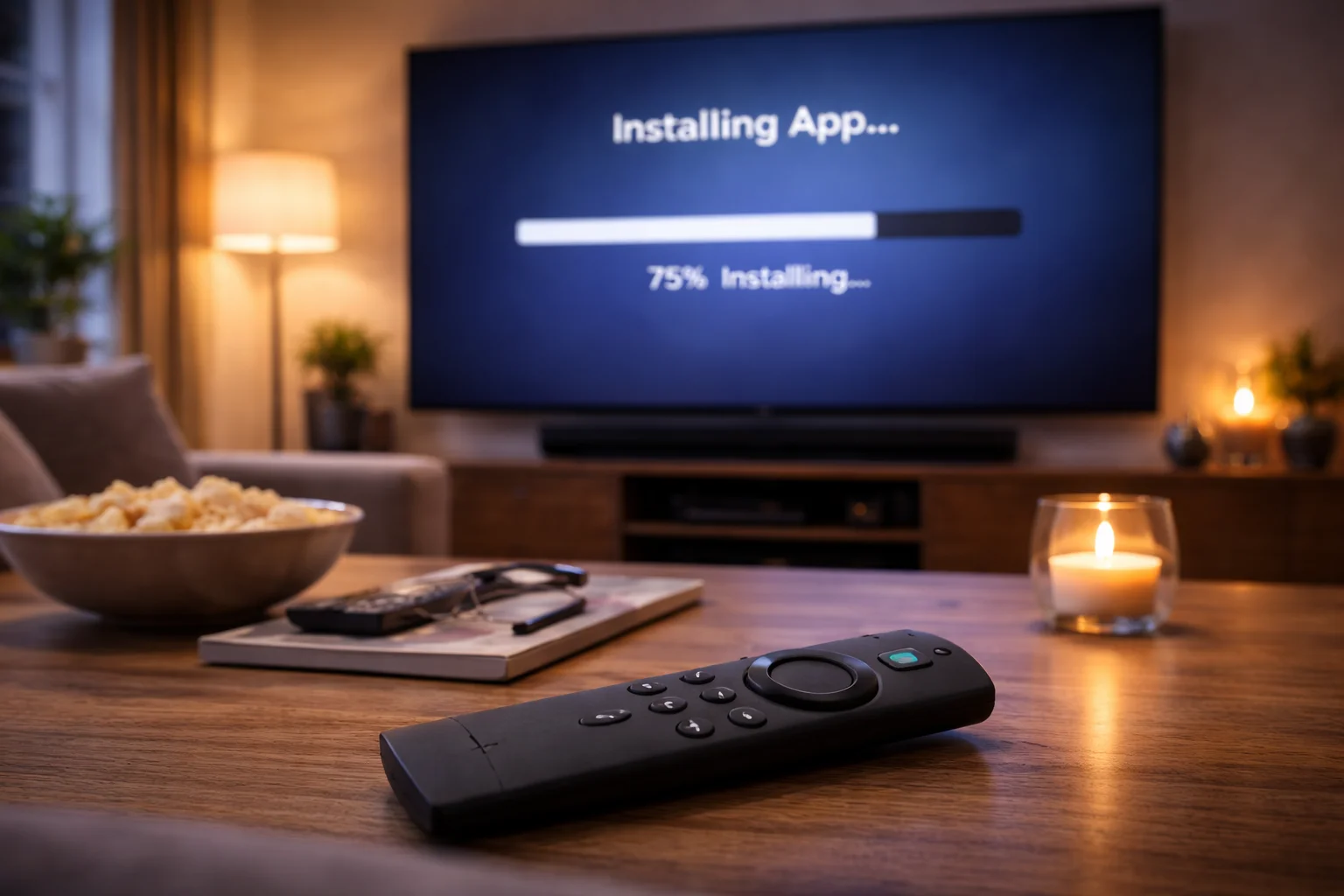
In the Downloader app, enter the download URL for your chosen player. When considering how to set up iptv, For IPTV Smarters Pro, your provider will supply a direct download link. For TiviMate, search for it in the Amazon App Store where it is available directly.
Step 4: Enter Your Credentials
Open the installed player app and select “Add User” or “Add Playlist.” Choose “Xtream Codes API” as the login method.
Enter your username, password, and server URL exactly as provided in your welcome email.
Step 5: Load and Browse
The app will connect to the server and download your channel list. This takes 30 seconds to 2 minutes depending on the list size. Once loaded, browse categories and start watching.
For a more detailed walkthrough, see our complete Firestick IPTV guide.
Setting Up on Android TV Boxes
Android boxes like the Nvidia Shield and Formuler Z series offer the best IPTV performance. Setup is straightforward:
Step 1: Connect and Update
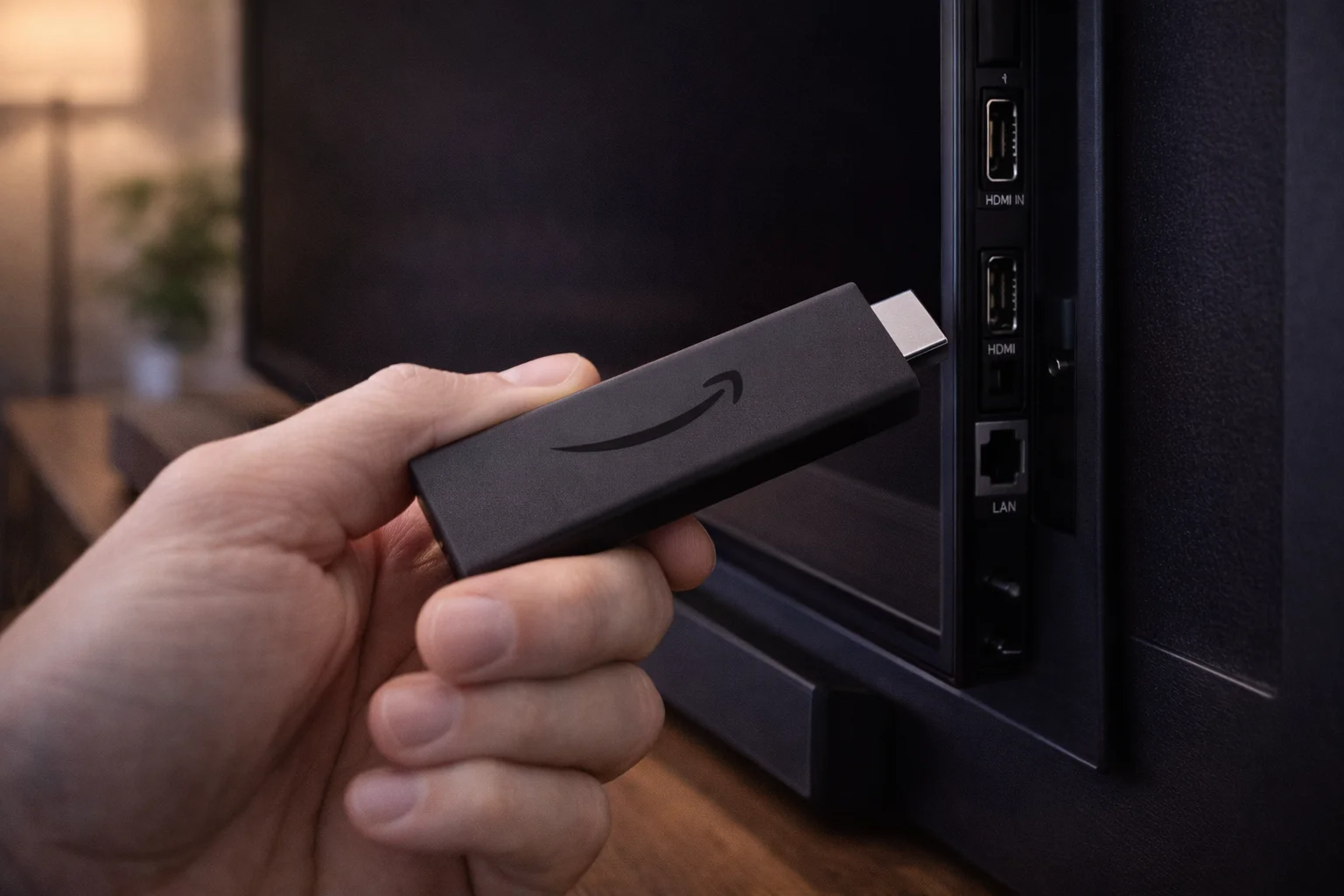
Connect your Android box to your TV via HDMI and to your internet via Ethernet cable (preferred) or Wi-Fi.
Run any pending system updates before installing apps.
Step 2: Install a Player App
Open the Google Play Store on your Android box. Search for “IPTV Smarters Pro” or “TiviMate” and install your preferred player.
Step 3: Enter Your Details
Launch the app, select “Add New User” and choose the Xtream Codes login method. Input your username, password, and server URL.
Step 4: Configure Settings
In TiviMate, navigate to Settings > Playback and set the default video player to “External (VLC)” if you experience any playback issues with the built-in player. Set the buffer size to “Medium” or “Large” for more stable streams.
Setting Up on Smart TVs
Modern Smart TVs from Samsung, LG, Sony, and Philips can run IPTV apps natively.
Samsung Tizen TVs
Samsung Smart TVs use the Tizen operating system, which has limited IPTV app support in the official store. The easiest solution is to use the Smart IPTV (SIPTV) app:
- Open the Samsung App Store and install Smart IPTV
- Note the MAC address displayed on screen
- Visit siptv.app on your phone or computer
- Enter your TV’s MAC address and your M3U URL
- Press “Send” and restart the app on your TV
LG webOS TVs
LG TVs follow a similar process using the Smart IPTV app available in the LG Content Store. The setup steps are identical to Samsung.
Android TVs (Sony, Philips, TCL)
TVs running Android TV have direct access to the Google Play Store. Install TiviMate or IPTV Smarters Pro and enter your credentials exactly as you would on an Android box. Read our full Smart TV setup guide.
Setting Up on Android Phones and Tablets
Learning how to set up IPTV on your Android device takes under 3 minutes:
- Open the Google Play Store
- Search for and install “IPTV Smarters Pro”
- Open the app and tap “Add New User”
- Select “Login with Xtream Codes API”
- Enter your username, password, and server URL
- Tap “Add User” and wait for the channel list to load
For watching on mobile data, ensure you have sufficient data allowance. HD streaming uses approximately 1.5 GB per hour, and 4K uses approximately 7 GB per hour.
Setting Up on iPhone and iPad
Apple devices support IPTV through several apps available in the App Store:
- Open the App Store and search for “IPTV Smarters Player”
- Install the app (it may be listed as “Smarters Player Lite”)
- Open the app and select “Load Your Playlist”
- Choose “Xtream Codes API” as the login method
- Enter your credentials and tap “Add User”
Note: Apple regularly removes IPTV apps from the App Store. If Smarters is unavailable, alternatives include GSE Smart IPTV and 247 IPTV Player.
Setting Up on Windows PC
For watching on your laptop or desktop computer:
Using VLC Media Player (Free)
- Download and install VLC Media Player
- Open VLC and go to Media > Open Network Stream
- Paste your M3U URL into the network URL field
- Click “Play” and your channel list will load
Using MyIPTV Player (Windows Store)
- Open the Microsoft Store and install “MyIPTV Player”
- Go to Settings within the app
- Add your M3U URL as a remote channel list
- Refresh the channel list and start browsing
Configuring Your EPG
An Electronic Programme Guide gives you a proper TV schedule showing what is currently playing and what airs next. Most player apps automatically load the EPG from your provider, but sometimes manual configuration is needed.
In TiviMate
- Go to Settings > EPG
- Tap “Add EPG Source”
- Enter the EPG URL provided by your provider
- Set the update interval to every 12 hours
- Tap “Update EPG” to load the initial data
In IPTV Smarters Pro
The EPG loads automatically through the Xtream Codes API. If it does not appear, go to Settings > EPG Settings and toggle “Auto Load EPG” to ON.
Optimising Your Setup
Once you know how to set up IPTV, these optimisations ensure the best experience:
Use Ethernet over Wi-Fi. A wired connection eliminates interference and provides consistent speeds.
If your device is far from the router, use a powerline adapter to run Ethernet through your electrical wiring.
Activate a VPN. Connect to a UK VPN server before opening your IPTV app. This prevents ISP throttling and protects your privacy. Read our VPN recommendations.
Organise your favourites. Spend 10 minutes starring your most-watched channels. This creates a personalised shortcut list that saves daily browsing time.
Clear cache regularly. If your app becomes sluggish, clear its cache through your device settings. This is especially important on Firestick devices with limited storage.
Restart your device weekly. A fresh restart clears memory and temporary files, improving overall performance.
Troubleshooting Common Issues
Channels Not Loading
- Verify your credentials are entered correctly (no extra spaces)
- Check your internet connection speed at Speedtest.net
- Try switching from Wi-Fi to Ethernet
- Contact your provider to confirm your account is active
Buffering During Playback
- Increase the buffer size in your player app settings
- Close other apps and devices using your internet connection
- Connect via Ethernet if using Wi-Fi
- Activate your VPN to prevent ISP throttling
- See our complete buffering fix guide
No EPG Data Showing
- Manually add the EPG URL from your provider
- Wait 5 minutes after setup for the EPG to fully download
- Force refresh the EPG from your app settings
- Restart the app after adding the EPG source
Audio Out of Sync
- Switch the video player to “External” in your app settings
- Restart the channel by switching away and back
- Clear the app cache and reload
Frequently Asked Questions: How to set up iptv
### How long does it take to set up IPTV?
Most people complete their setup in under 10 minutes. The longest part is waiting for the channel list and EPG to download, which typically takes 1-2 minutes on a fast connection.
### Do I need a special device to use IPTV?
No.
IPTV works on Smart TVs, Amazon Firesticks, Android boxes, smartphones, tablets, and computers. You probably already own a compatible device. A Firestick is the most popular affordable option if you need a dedicated device.
### What is the best app for IPTV?
IPTV Smarters Pro is the best choice for beginners due to its simple interface. TiviMate is preferred by experienced users for its advanced EPG features, recording capability, and regular updates.
### Can I set up IPTV without technical knowledge?
Absolutely. If you can download an app and enter a username and password, you can set up IPTV.
The process is no more complex than setting up Netflix or BBC iPlayer on a new device.
### What internet speed do I need?
A minimum of 15 Mbps for HD streaming and 25-50 Mbps for 4K content. Most UK broadband connections exceed these requirements. Always use a wired connection when possible.
Conclusion: You Are Ready to Stream: How to set up iptv
Learning how to set up IPTV is surprisingly simple regardless of which device you use. The process follows the same core steps everywhere: install a player app, enter your credentials, and start watching.
For the best experience, use an Ethernet connection, activate a VPN, and organise your favourite channels.
If you run into any issues, the troubleshooting section above covers every common problem.
Do not have a subscription yet? Start by claiming a free trial and follow the setup steps in this guide to get streaming within minutes.