IPTV Smarters Pro is one of the most popular player applications for streaming live television over the internet. Its clean interface, multi-platform support, and reliable performance make it the go-to choice for millions of streamers worldwide. You might also be interested in our guide on How to Set Up IPTV: Complete Step-by-Step Guide for Beginners.
You might also be interested in our guide on IPTV Firestick: Complete Setup Guide for Amazon Fire TV in 2025.
Whether you are installing it for the first time or looking to unlock its full potential, this guide covers everything from basic setup to advanced features and troubleshooting.
Need a subscription first? Check our free trial guide to get started. You might also be interested in our guide on IPTV Smart TV: How to Stream on Samsung, LG, Sony and More.
Quick Summary: Key Takeaways
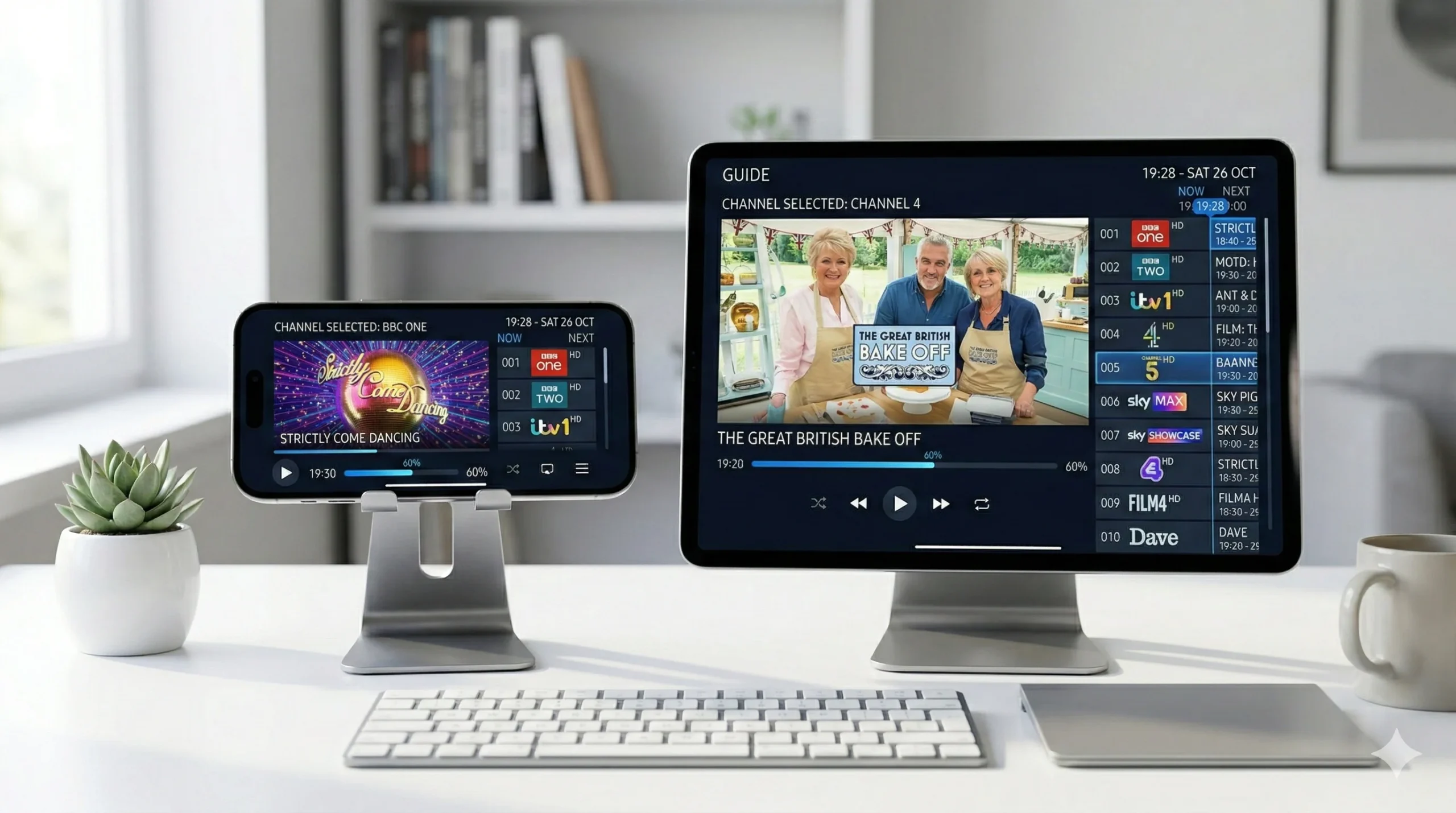
- IPTV Smarters Pro works on Android, iOS, Firestick, Windows, and Smart TVs.
- It supports three login methods: Xtream Codes API, M3U URL, and M3U file upload.
- The Xtream Codes API method is the easiest and most reliable.
- Built-in EPG support shows live programme schedules automatically.
- Parental controls allow you to lock specific channel categories.
- The app is free with basic features; premium unlocks all functionality.
- Multi-user support lets you manage multiple profiles in one app.
Table of Contents
- What Is IPTV Smarters Pro?
- Downloading the App
- Setting Up Your Account
- Navigating the Interface
- Managing Favourites and Categories
- EPG Configuration
- Parental Controls
- Multi-User Profiles
- Playback Settings and Optimisation
- Troubleshooting Common Problems
- IPTV Smarters Pro vs TiviMate
- Frequently Asked Questions
- Conclusion
What Is IPTV Smarters Pro?
IPTV Smarters Pro is a media player application that connects to your IPTV provider’s server and displays their channel list on your device. Think of it as the app that sits between your subscription and your screen.
The app does not provide any channels itself.
You need an active IPTV subscription from a provider who gives you login credentials. Smarters Pro simply takes those credentials and turns them into a usable television interface.
It is developed by WHMCS Smarters and is available across every major platform. The app handles live TV, Video on Demand, TV series, catch-up content, and EPG data in a single unified interface.
Downloading the App
Android Devices and Android TV
Open the Google Play Store and search for “IPTV Smarters Pro.” Install the official version by WHMCS Smarters. The app is free to download with optional premium features.
Amazon Firestick and Fire TV
IPTV Smarters Pro is not always available in the Amazon App Store due to periodic removals. To install it:
- Install the “Downloader” app from the Amazon App Store
- Open Downloader and enter the download URL provided by your IPTV provider
- The APK will download and prompt you to install
- If prompted, enable “Install Unknown Apps” for the Downloader app in Settings
See our complete Firestick guide for detailed installation steps.
iPhone and iPad
Search for “IPTV Smarters Player” or “Smarters Player Lite” in the Apple App Store. Apple periodically removes IPTV apps, so the exact name may vary.
Download the official version by WHMCS Smarters.
Windows PC
Download the Windows desktop version from the official IPTV Smarters website. Install the setup file and launch the application. It works identically to the mobile version but optimised for a desktop layout.
Setting Up Your Account
Once installed, IPTV Smarters Pro offers three login methods:
Method 1: Xtream Codes API (Recommended)
This is the simplest and most common method:
- Open the app and select “Add New User”
- Choose “Login with Xtream Codes API”
- Enter a name for this profile (e.g., “My IPTV”)
- Enter your Username from your provider
- Enter your Password from your provider
- Enter the Server URL (e.g., http://provider.com:8080)
- Tap “Add User”
The app connects to the server, verifies your credentials, and downloads the channel list. This usually takes 30 seconds to 2 minutes.
Method 2: M3U URL
- Select “Load Your Playlist or File”
- Choose “M3U URL”
- Paste the complete M3U link provided by your provider
- Name the playlist and tap “Add User”
Method 3: M3U File Upload
If your provider sent you a downloadable .m3u file:
- Save the file to your device
- In Smarters Pro, select “Load Your Playlist or File”
- Choose “Select File” and browse to the downloaded file
- The channel list loads from the local file
Important: The Xtream Codes API method provides the best experience because it enables automatic EPG loading, catch-up TV, and real-time channel updates. M3U URLs work well but may not support all features.
File uploads work offline but require manual updates.
Navigating the Interface
IPTV Smarters Pro organises content into four main sections accessible from the home screen:
Live TV
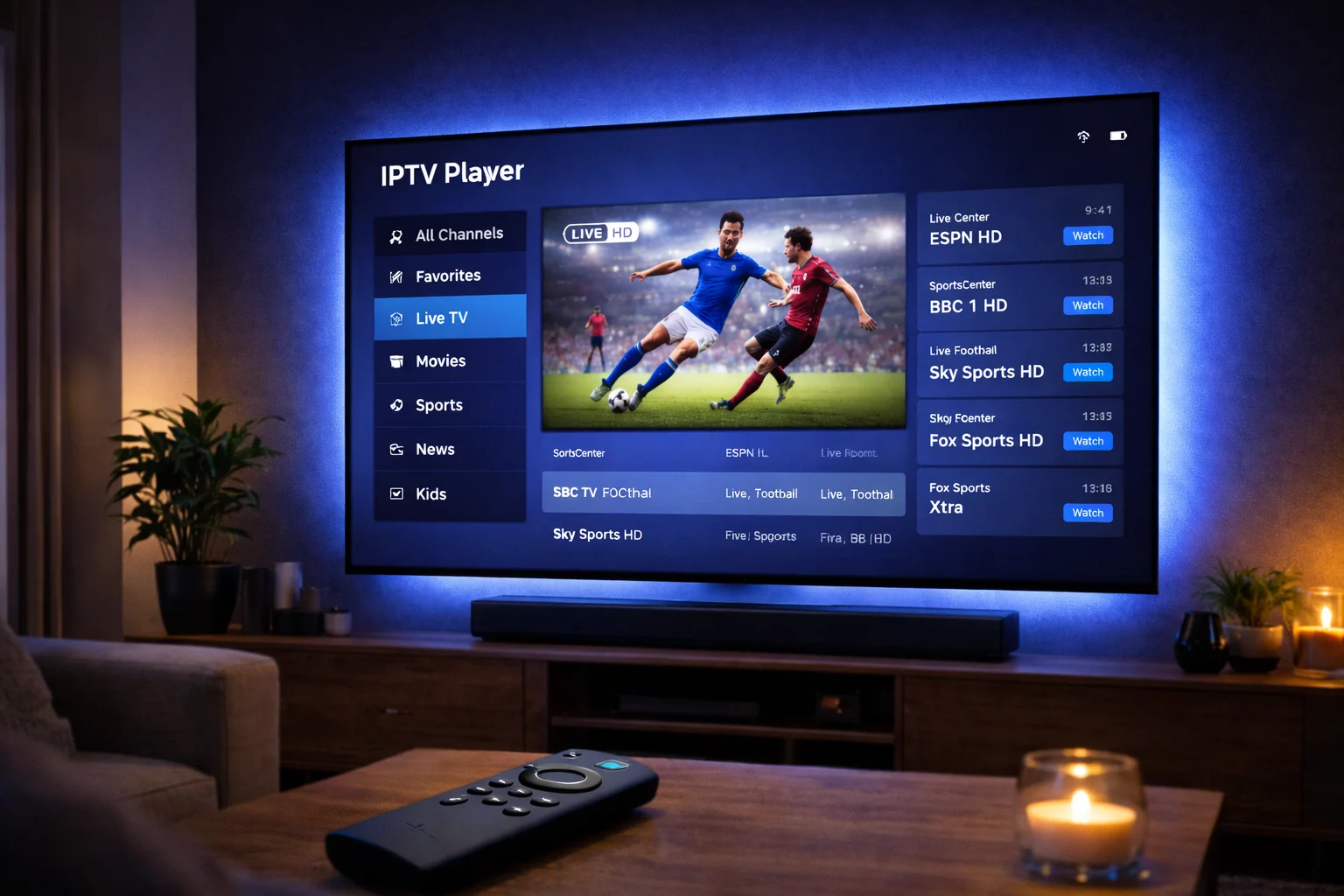
This is where you browse and watch live television channels. Channels are organised into categories (UK Entertainment, UK Sports, Movies, Kids, etc.) in a sidebar. Select a category to filter the channel list, then click any channel to start watching.
Movies (VOD)
The movies section displays your provider’s Video on Demand library. Browse by genre, search for specific titles, and press play to start watching. Movie artwork and descriptions load automatically if your provider supplies metadata.
Series
Similar to VOD but organised by TV series.
Browse available shows, select a series, choose a season, and pick an episode. Well-configured providers list complete seasons with episode titles and descriptions.
Catch-Up
If your provider supports catch-up functionality, this section lets you watch programmes that aired in the past 24 to 72 hours. Browse by channel and date to find missed broadcasts.
Managing Favourites and Categories
One of the most useful features in IPTV Smarters Pro is the favourites system:
Adding Favourites
While browsing the Live TV section, long-press on any channel and select “Add to Favourites.” The channel appears in a dedicated Favourites category at the top of your channel list.
Creating Custom Categories
Some versions of Smarters Pro allow you to create custom channel groups. This lets you organise channels by household member, viewing time, or personal preference rather than relying on the provider’s default categories.
Hiding Unwanted Categories
If your provider includes channel categories you never use (e.g., foreign language packages), you can hide them from the interface. Go to Settings > Category Management and deselect categories you want to remove from your sidebar.
EPG Configuration
The Electronic Programme Guide in IPTV Smarters Pro loads automatically when using the Xtream Codes API login method. You should see programme names, times, and descriptions within the channel information panel.
If the EPG is not loading:
- Go to Settings > EPG Settings
- Toggle “Auto Load EPG” to ON
- Tap “Refresh EPG” or “Reinstall EPG”
- Wait 2-5 minutes for the full download
If your provider supplied a separate EPG URL, you can add it manually under EPG Settings. The app will merge EPG data from the provider’s Xtream Codes server with any additional EPG sources you configure.
Parental Controls
IPTV Smarters Pro includes parental control features that let you restrict access to specific channel categories:
- Go to Settings > Parental Controls
- Enable parental controls and set a 4-digit PIN
- Select the channel categories you want to lock (e.g., Adult, PPV)
- These categories now require the PIN to access
This is essential for family households where children have access to the streaming device. Any category can be locked, not just adult content.
Multi-User Profiles
Smarters Pro supports multiple user profiles within a single app installation. This is useful if you have subscriptions from different providers or if different family members have separate accounts.
To add another profile:
- Go to the home screen
- Tap “Add New User”
- Enter the credentials for the additional account
- Switch between profiles from the home screen
Each profile maintains its own favourites, EPG settings, and playback preferences.
Playback Settings and Optimisation
Fine-tuning playback settings in IPTV Smarters Pro significantly improves your streaming experience:
Video Player Selection
Go to Settings > Player Selection. Choose between:
- Built-in Player: Works well for most channels.
Use this as your default.
- External Player (VLC/MX Player): Better for handling problematic streams, codec issues, or audio sync problems. Install VLC or MX Player separately.
Buffer Settings
If you experience intermittent buffering:
- Increase the buffer size to “Medium” or “Large” in Settings
- A larger buffer pre-downloads more video data before playback begins
- This adds a 2-3 second delay when switching channels but significantly reduces mid-stream buffering
Auto-Start on Boot
On devices like the Firestick and Android boxes, enable “Auto-Start” in the app settings. This launches Smarters Pro automatically when you turn on your device, saving you the step of manually opening the app.
Troubleshooting Common Problems
### “Invalid Credentials” Error
- Double-check your username, password, and server URL for typos
- Ensure there are no extra spaces before or after any field
- Verify the server URL format: it should include
http://and a port number - Contact your provider to confirm your account status
### Channels Not Loading
- Test your internet connection speed
- Try switching from Wi-Fi to Ethernet
- Clear the app cache: Settings > Apps > IPTV Smarters Pro > Clear Cache
- Reinstall the app and re-enter your credentials
### Buffering or Freezing
- Increase the buffer size in Settings
- Activate your VPN to prevent ISP throttling
- Close other streaming apps running in the background
- Switch the video player to External (VLC)
- See our complete buffering fix guide
### Audio Out of Sync
- Switch to the External Player in Settings
- Restart the channel by switching away and back
- Update the app to the latest version
### EPG Not Displaying
- Refresh the EPG from Settings > EPG Settings
- Wait 5 minutes for a full EPG download
- Verify your provider supports EPG through Xtream Codes
IPTV Smarters Pro vs TiviMate
Both apps are excellent, but they serve slightly different audiences:
| Feature | IPTV Smarters Pro | TiviMate |
|---|---|---|
| Best For | Beginners | Advanced users |
| Interface | Clean, simple | Feature-rich |
| EPG Display | Basic grid | Advanced multi-day grid |
| Recording | Not supported | Supported (premium) |
| Catch-Up | Supported | Supported |
| Multi-Profile | Yes | Yes |
| Price | Free / Premium | Free / Premium (£5/year) |
| Platforms | All major | Android only |
Choose Smarters Pro if you want simplicity, cross-platform support (especially iOS), and a gentle learning curve.
Choose TiviMate if you want the most advanced EPG, recording capability, and are using Android or Firestick devices exclusively.
Frequently Asked Questions
### Is IPTV Smarters Pro free to use?
The basic version is free with limited features. The premium version unlocks all functionality including multiple profiles, advanced EPG, and additional player options. Premium is a one-time purchase on most platforms.
### Does IPTV Smarters Pro provide channels?
No.
It is a player application only. You need an active subscription from an IPTV provider who gives you login credentials. Smarters Pro simply connects to your provider’s server and displays their content.
### Why was IPTV Smarters Pro removed from the App Store?
Apple and Google periodically remove IPTV apps due to copyright concerns. Alternative versions often appear under different names. Check your provider’s website for current download links and alternatives.
### Can I use IPTV Smarters Pro on multiple devices?
Yes.
You can install the app on unlimited devices. However, the number of simultaneous streams depends on your subscription plan, not the app itself. Check your provider’s connection allowance.
### What should I do if the app keeps crashing?
Clear the app cache, uninstall and reinstall, and ensure your device has sufficient storage space (at least 500 MB free). If crashes persist, try the TiviMate alternative.
For more information on internet streaming technology, visit the Ofcom Connected Nations Report.
Conclusion: The Perfect Starting Point
IPTV Smarters Pro is the ideal player app for anyone getting started with IPTV streaming. Its simple interface, cross-platform availability, and reliable performance make setup painless regardless of your technical experience.
For the best results, use the Xtream Codes API login method, configure your EPG, organise your favourite channels, and set up parental controls if needed. Combined with a quality IPTV provider and a reliable VPN, you will have a premium streaming experience that rivals any cable television package.